
Using SQL Developer to access Apache Hive with kerberos authentication
With Hadoop implementations moving into mainstream, many of the Oracle DBA's are having to access SQL on Hadoop frameworks such as Apache Hive in their day to day operations. What better way is there to achieve this than using the familiar, functional and trusted Oracle SQL Developer!
Oracle SQL Developer (since version 4.0.3) allows access to Apache Hive to create, alter and query hive tables and much more . Lets look at how to setup connections to Hive both with and without kerberos and once connected look at the available functionality.
Establishing connectivity to Hive
Download Cloudera Hive JDBC drivers
Assuming Oracle SQL developer is already installed (if not you can download the latest version from here) then the next step is to download the Hive JDBC drivers from Cloudera website and unzip to the target directory, in my case its windows 64bit hive jdbc 2.5.4 version
C:\Users\pkothuri\Downloads>7Z e Cloudera_HiveJDBC_2.5.4.1006.zip -oc:\hive-jdbc

7-Zip [64] 9.20 Copyright (c) 1999-2010 Igor Pavlov 2010-11-18

Processing archive: Cloudera_HiveJDBC_2.5.4.1006.zip
Extracting Cloudera_HiveJDBC4_2.5.4.1006.zip
Extracting Cloudera_HiveJDBC3_2.5.4.1006.zip

Everything is Ok

Files: 2
Size: 10838580
Compressed: 10838990
You will see two archives, JDBC4 driver is the one that works with SQL Developer
C:\Users\pkothuri\Downloads>7Z e c:\hive-jdbc\Cloudera_HiveJDBC4_2.5.4.1006.zip -oc:\hive-jdbc\jdbc4

7-Zip [64] 9.20 Copyright (c) 1999-2010 Igor Pavlov 2010-11-18

Processing archive: c:\hive-jdbc\Cloudera_HiveJDBC4_2.5.4.1006.zip

Extracting Cloudera - Simba JDBC Driver for Hive Install Guide.pdf
Extracting HiveJDBC4.jar
Extracting hive_metastore.jar
Extracting hive_service.jar
Extracting libfb303-0.9.0.jar
Extracting libthrift-0.9.0.jar
Extracting log4j-1.2.14.jar
Extracting ql.jar
Extracting slf4j-api-1.5.8.jar
Extracting slf4j-log4j12-1.5.8.jar
Extracting TCLIServiceClient.jar

Everything is Ok

Files: 11
Size: 15297947
Compressed: 5521341
Add Hive JDBC drivers to SQL Developer
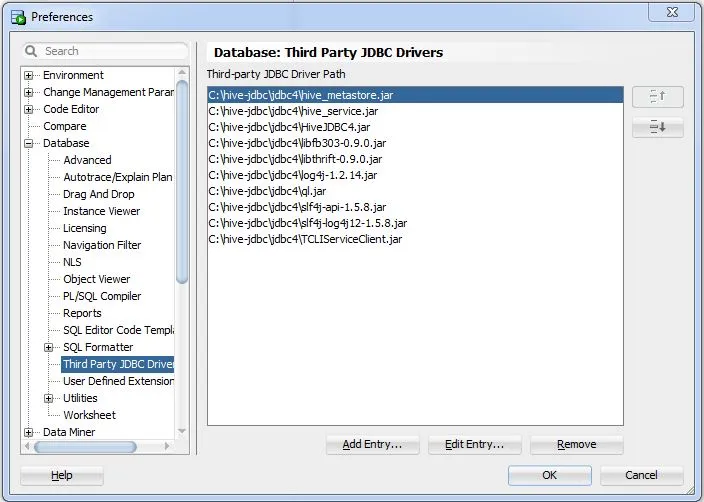
Open SQL Developer and goto Tools-> Preferences, expand the Database on the right and select Third Party JDBC Driver to add the Cloudera Hive JDBC drivers
Create a connection to Hive (with kerberos)
If your Hadoop installation is configured for kerberos authentication which is most likely then you would have to do the following to get the connection working with kerberos
Create keytab file
On windows desktop
1. Install MIT Kerberos for windows 4.01 from here
2. Set the following system environment variable (start button -> right-click computer -> click properties -> Advanced system settings -> Advanced tab -> Environment Variables -> add under system variables)
KRB5CCNAME = FILE:C:\sqldeveloper\pkothuri.keytab3. Obtain the kerberos ticket using kinit
C:\Program Files\MIT\Kerberos\bin>kinit pkothuri@MYCOMPANY.COM
Password for pkothuri@MYCOMPANY.COM:
On Linux / Mac
1. set KRB5_CONF and KRB5CCNAME to kerberos config file and cache file respectively and obtain kerberos ticket with kinit
Copy krb5.conf to /etc OR set KRB5_CONF variable if it is non standard location
klist -f -c /tmp/pkothuri.keytab
KRB5CCNAME = /tmp/pkothuri.keytab
Download Java Cryptography Extension
You may need to download Unlimited Java Cryptography Extension files from here and copy (replace) local_policy.jar and US_export_policy.jar files to jdk\jre\lib\security directory inside sql developer installation. If you use 256 bit keys for encrpytion then you need these unlimited strength JCE jars for kerberos authentication to work
Open the SQL Developer and create the connection as below
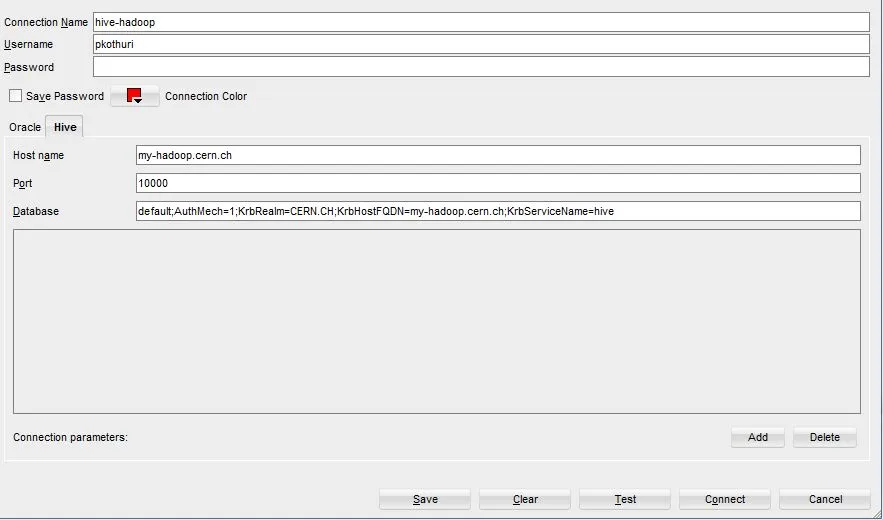
default – to connect to the default hive database, you can change this if you want
AuthMech=1 – means kerberos authentication
KrbRealm – Kerberos Realm
KrbHostFQDN – Hive server 2 hostname (most configurations its the name node)
KrbServiceName – Hive Server 2 service name
If you don't know any of the above information for your hadoop cluster ask your Hadoop Administrator / check hive-site.xml in /etc/hive/conf directory
Now you will be able to connect to Apache Hive to query/create/alter hive tables
Create a connection to Hive (without kerberos)
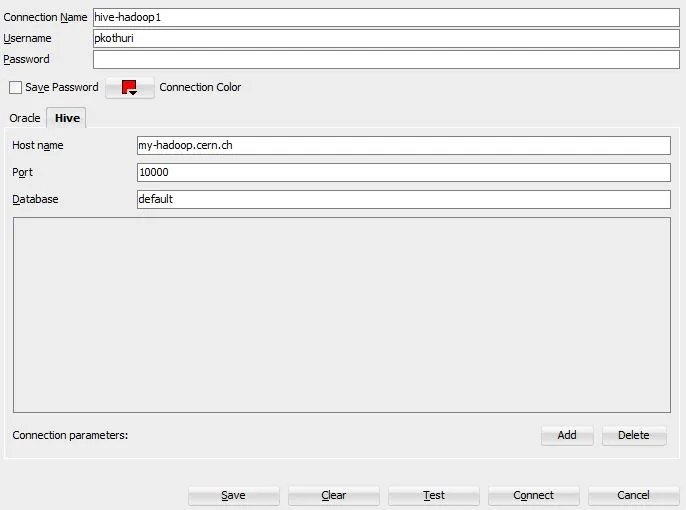
If your Hadoop cluster is not configured to use kerberos you can still connect to hive using SQL Developer using user / password authentication
Exploring Hive tables
Creating Hive tables
Copy a small dataset to HDFS
wget --no-check-certificate https://public.tableau.com/s/sites/default/files/media/TopBabyNamesbyState.csv
hdfs dfs -put TopBabyNamesbyState.csv /user/pkothuri/TopBabyNamesbyState.csv
In the SQL Developer execute the following command to create a HIVE table
create external table babynames
(state string, gender string, year tinyint, name string, occurences tinyint)
row format delimited fields terminated by ','
stored as TEXTFILE
location '/user/pkothuri/'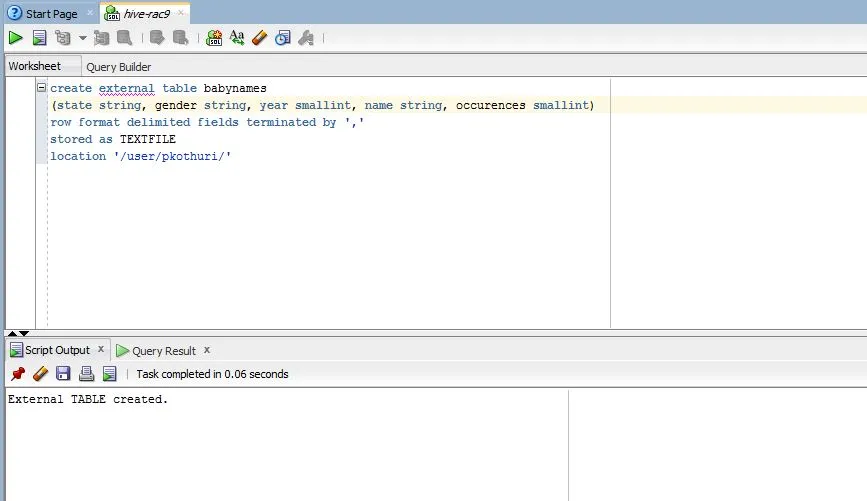
Query Hive tables
Once you have created the tables then you can perform all queries permitted in Apache Hive SQL dialect
select * from babynames;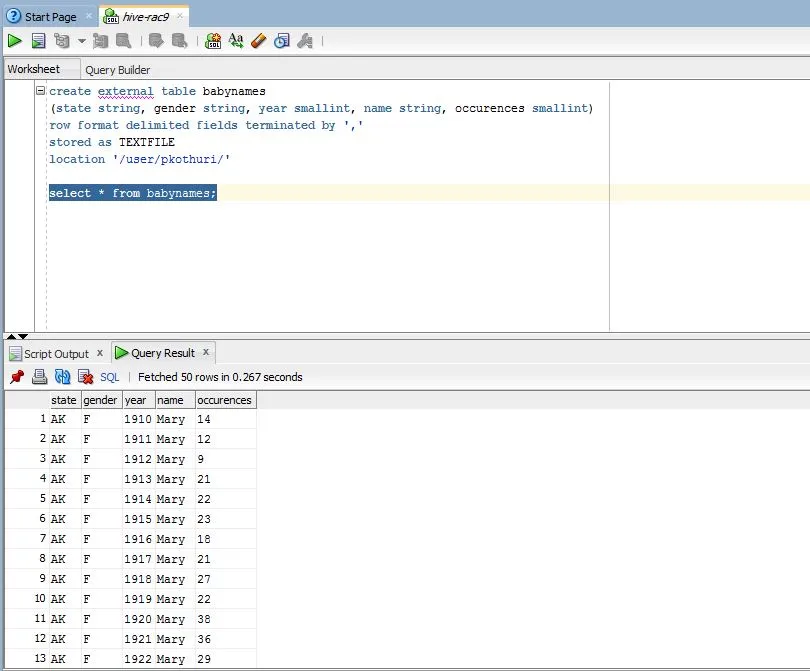
Altering Hive tables
You can pretty much do what ever Hive allows in SQL Developer, below are the couple of examples of altering the table
Change the name
alter table babynames rename to usababynames;Change external location on HDFS
hdfs dfs -mkdir /tmp/babynames
hdfs dfs -cp /user/pkothuri/TopBabyNamesbyState.csv /tmp/babynames
alter table usababynames set location 'http://namenode/tmp/babynames/';
Oracle Big Data SQL
If you are using Big Data SQL you can also generate the SQL to externalize the hive table to the target Oracle database
Conclusion
Oracle developers can use the familiar SQL Developer to connect to Hive and perform analytics on Hadoop eco system, this blog post specifically focuses on accessing Apache Hive using Oracle SQL Developer with kerberos authentication.